
Some of your visitors have been here before. They looked around, left, and chose to come back, which makes them the people most likely to buy or subscribe. A site that greets them like strangers wastes the warmest traffic it has.
A welcome back popup greets a returning visitor by name, with an offer new visitors don't see. This guide shows how to build one in WordPress from a ready template: the targeting and the personalization come preconfigured, so most of the work is deciding what to offer.
Advantages of a Welcome Back Popup
A returning visitor already did the hard part: they remembered your site and came back. A greeting that uses their name tells them the site noticed, and a message written for one person reads differently than the one every stranger sees.
Relevance is the real lever. Someone on their second or third visit has already shown what they're interested in, so the popup can offer something tied to that: a discount on the product they keep viewing, or a reminder about the cart they left behind.
For a store, returning visitors are where repeat purchases come from. A small reward for coming back, a coupon or early access to something new, makes the second order easier than the first and shows the customer the store noticed their loyalty.
The popup can also simply save them time: a link back to what they viewed last, or a shortcut to their account. Recognition without an ask is still a good experience, and it keeps people on the site longer.
Greet returning visitors by name FireBox recognises who has been here before and greets them personally. The template this guide uses has all of it preconfigured.What You Need to Know Before You Start
The tutorial below uses FireBox, an on-site marketing tool built for WooCommerce. It reads your site like a store: campaigns can see what's in the cart, what it's worth, what the shopper bought before, and which product they're looking at, and they can fire at the exact moment someone moves to leave. With Revenue Attribution, every campaign reports the WooCommerce revenue it brought back.

FireBox offers multiple triggers, such as on page load, exit-intent, scroll, and click, giving you precise control over when the popups appear. It also supports personalized and targeted popups with display conditions based on Device, Referrer, Page, URL, Cookie, Geolocation, Datetime, and even conditions for WooCommerce.
Step 1: Download FireBox Pro
The very first step is to get a license for FireBox Pro. Then, after purchasing FireBox Pro, you can access the Pro version.
- Go to fireplugins.com/downloads/
- Login with the details you received in the email after the purchase.
- Click Download in the Pro Downloads section.
Step 2: Install FireBox Pro
After downloading the FireBox Pro installation zip file, upload it to your site.
- Head to your WordPress dashboard and click on Plugins > Add New.
- Choose the zip file you have just downloaded. Click on install.
- Once the plugin is installed, click the Activate Plugin button to activate the plugin on your site.
Step 3: Activate FireBox Pro
After installing FireBox Pro, you must activate your license to ensure you receive automatic updates from the plugin. To learn more about creating and managing your license keys, click here.
If you need any help with the installation process, see the documentation on installing FireBox Pro for help. If you're already using FireBox Lite, you can easily upgrade from Lite to Pro. However, after upgrading to Pro, you must also activate your license to ensure you receive automatic plugin updates.
How to Create a Welcome Back Website Popup for Returning Visitors
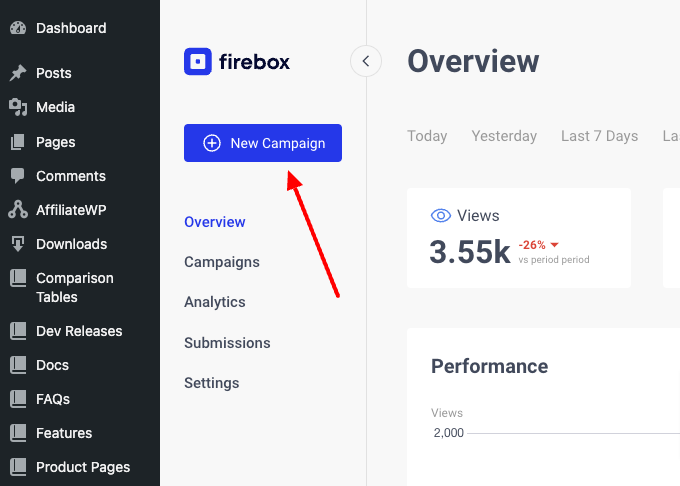
Now that you have the FireBox plugin installed, let’s look at how to create your first popup. Head to the FireBox plugin in your WordPress dashboard and click New Campaign, as shown in the screenshot below.
You will see a dialog with lots of pop-up layouts appearing. FireBox has a big collection of ready-to-use popup templates to help you get started.
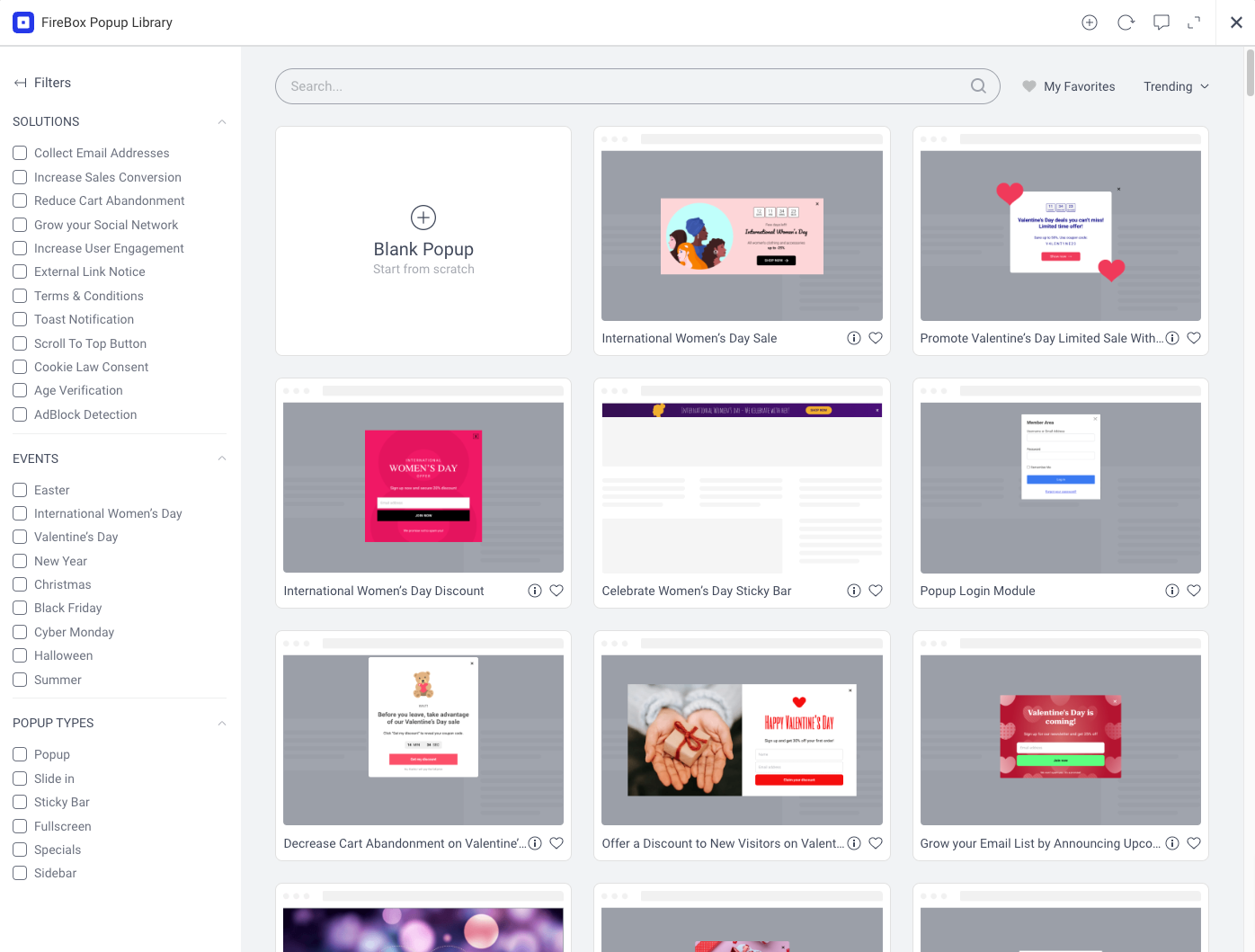
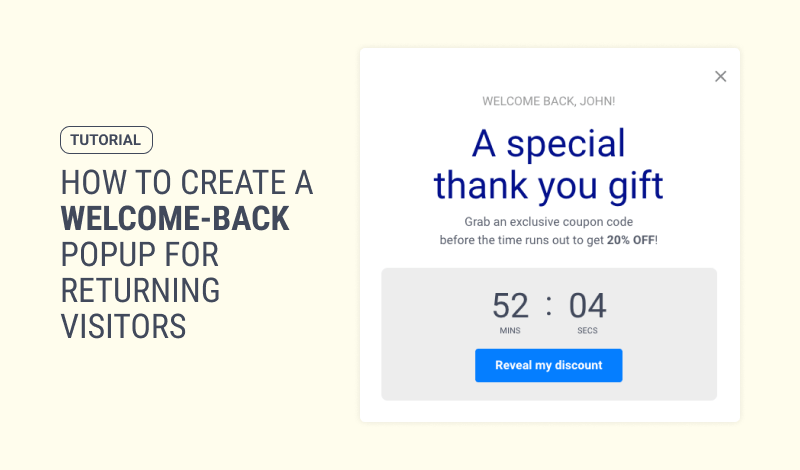
This tutorial will use the Welcome Back Returning Visitors with Discount Code template from the Increase Product Sales category. This popup reward returning visitors that are logged into your site by offering them with a special discount code.
From within the popup library, search for "returning visitor" and import the template.
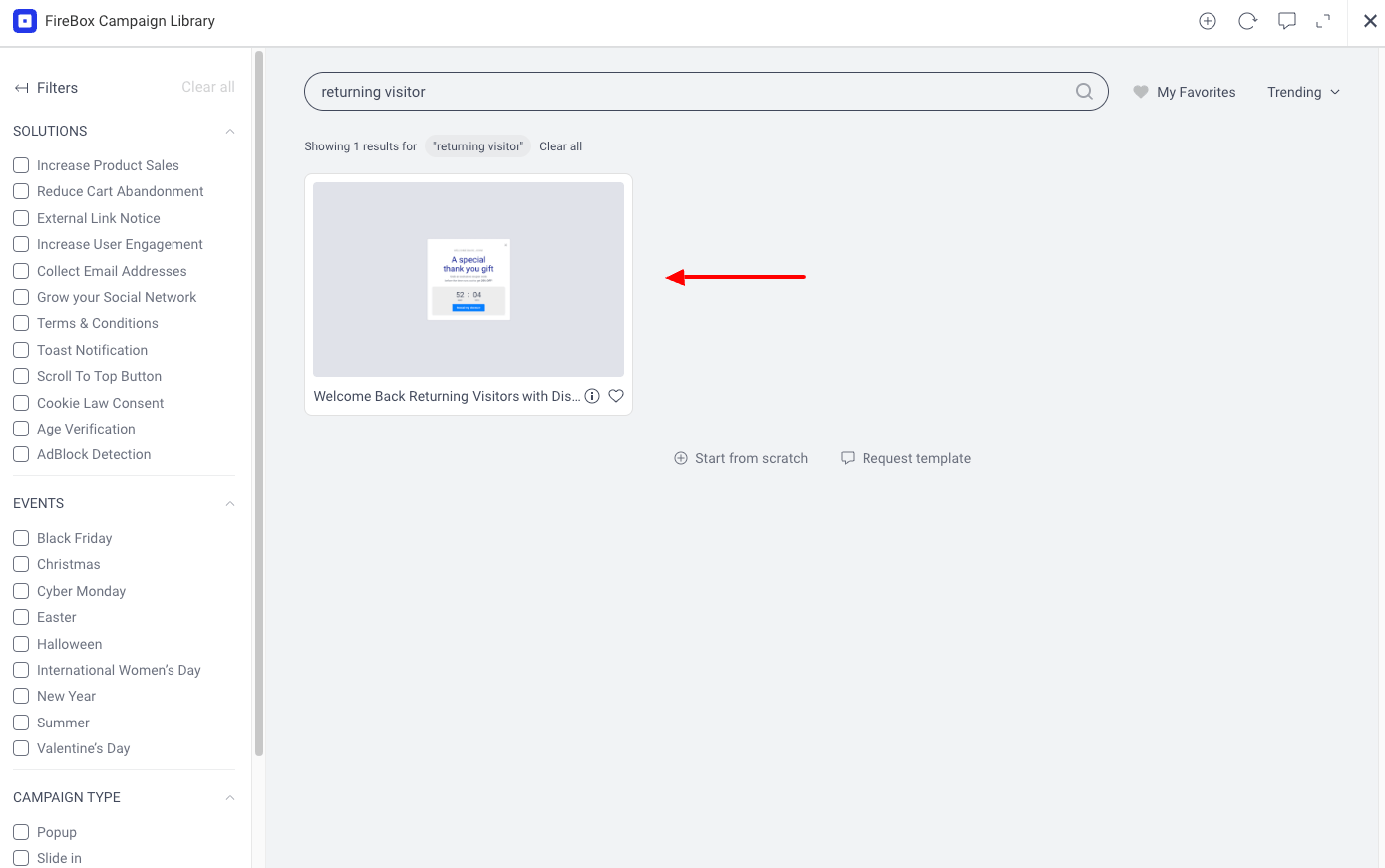
The welcome-back popup that we'll be adding will look like the following on your WordPress site:
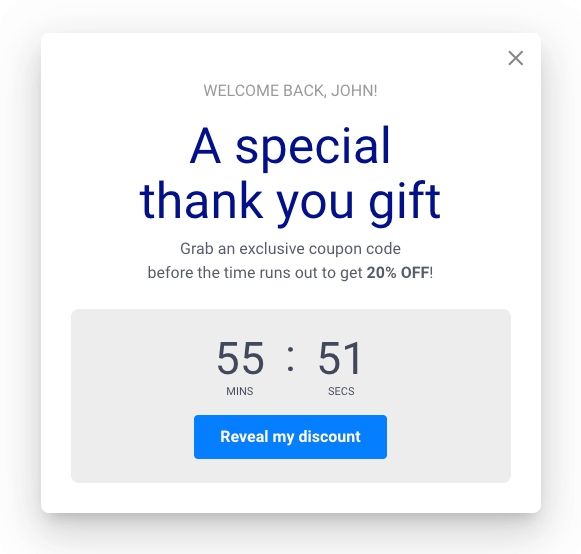
The template does two things:
- Targets Returning Visitors
- Uses Personalization
Targets Returning Visitors
Since we want to reward users that keep coming back to our site, we're using the New/Returning Display Condition to target the returning users. Feel free to read more on our documentation page about how the returning visitors detection works.
Uses Personalization
Another key feature of this popup is the fact that we display the user's name, giving it a more personalized tone.
This is all possible using our smart tags, which are information pieces that provide dynamic value, to display the user's name dynamically.
Now that we've imported the popup and discussed its key features, it's time to customize it and publish it!
And that’s it; you’ve successfully created a welcome back popup that rewards returning visitors in WordPress using the FireBox popup plugin.
Go further than new or returning On WooCommerce the same campaign can read purchase history: greet the returning shopper with an offer tied to what they bought last time, not a generic coupon.Conclusion
A welcome back popup takes one real decision: what to offer the visitor who came back. Make it something a stranger doesn't get, like a coupon or early access, and the greeting carries actual value.
On a WooCommerce store the same campaign can go further. Pair the returning-visitor targeting with purchase history, and the offer can reference what the shopper actually bought last time.
Get FireBox for Free
Enter your WordPress website URL to install instantly.
Trusted by 9,000+ users


0 Comments