


If you're running a WordPress website and using MailerLite for email marketing, you're already halfway there.
The missing piece?
Capturing visitors before they leave.
Most visitors won't actively look for your newsletter signup page. Even if you have a form in your footer or sidebar, it's passive. It waits.
A popup changes that. It appears at the right moment, captures attention, and turns anonymous visitors into subscribers.
In this guide, you'll learn how to create a MailerLite popup in WordPress using FireBox, how to connect MailerLite to WordPress properly, and how to optimize your popup for higher conversions.
Why Add a MailerLite Popup Form in WordPress?
Driving traffic to your website takes time and money. Whether you're investing in SEO, ads, or content marketing, every visitor matters.
But most visitors leave and never return.
An email list changes that.
When someone subscribes through your MailerLite popup form, you can:
- Send follow-up emails
- Deliver lead magnets
- Announce new content
- Promote products
- Recover lost sales
- Build long-term relationships
A WordPress MailerLite popup ensures you capture visitors while they’re engaged, instead of waiting for them to find a static form.
Compared to a simple embedded form, a popup:
- Triggers based on behavior
- Targets specific pages
- Limits display frequency
- Increases visibility dramatically
When implemented correctly, popup forms consistently outperform passive signup forms.
Why build an email list with MailerLite?
MailerLite is a popular email marketing platform because it balances simplicity and functionality.
With MailerLite, you can:
- Send email campaigns
- Create automation workflows
- Segment subscribers using groups
- Use custom fields for personalization
- Track performance metrics
- Build landing pages
For many WordPress users, it offers everything needed without unnecessary complexity.
However, email marketing only works if you consistently grow your list. That's where a popup form becomes essential.
4 benefits of adding a WordPress MailerLite popup form to your site
1. Capture Visitors at the Right Moment
A popup appears when it matters most.
You can trigger it:
- After a visitor scrolls 50%
- After 15–20 seconds
- On exit intent
- On specific pages only
Timing matters. Showing the right message at the right moment increases opt-in rates significantly.
2. Grow Your List Without Sending Visitors Elsewhere
A separate “Newsletter” page adds friction.
A MailerLite popup form keeps the signup process inside the browsing experience, without redirecting visitors or interrupting content flow.
3. Better Segmentation from Day One
MailerLite allows you to organize subscribers into Groups and use custom fields.
When integrating MailerLite with a WordPress popup plugin, you can automatically:
- Assign subscribers to specific groups
- Pass custom field data
- Track source of signup
- Segment based on page context
For example:
Blog readers → “Newsletter” group
Product page visitors → “Discount” group
Lead magnet downloads → “Guide Subscribers” group
Better segmentation leads to better automation.
4. More Than Just Newsletters
A MailerLite popup WordPress integration isn’t just for newsletters.
You can use popup forms for:
- Lead magnets
- Discount codes
- Webinar registrations
- Waitlists
- Product launches
- Free downloads
The same system supports multiple growth strategies.
How to Connect FireBox With MailerLite
The tutorial below uses FireBox, an on-site marketing tool built for WooCommerce. It reads your site like a store: campaigns can see what's in the cart, what it's worth, what the shopper bought before, and which product they're looking at, and they can fire at the exact moment someone moves to leave. With Revenue Attribution, every campaign reports the WooCommerce revenue it brought back.

FireBox offers multiple triggers, such as on page load, exit-intent, scroll, and click, giving you precise control over when the popups appear. It also supports personalized and targeted popups with display conditions based on Device, Referrer, Page, URL, Cookie, Geolocation, Datetime, and even conditions for WooCommerce.
Step 1: Download FireBox Pro
The very first step is to get a license for FireBox Pro. Then, after purchasing FireBox Pro, you can access the Pro version.
- Go to fireplugins.com/downloads/
- Login with the details you received in the email after the purchase.
- Click Download in the Pro Downloads section.
Step 2: Install FireBox Pro
After downloading the FireBox Pro installation zip file, upload it to your site.
- Head to your WordPress dashboard and click on Plugins > Add New.
- Choose the zip file you have just downloaded. Click on install.
- Once the plugin is installed, click the Activate Plugin button to activate the plugin on your site.
Step 3: Activate FireBox Pro
After installing FireBox Pro, you must activate your license to ensure you receive automatic updates from the plugin. To learn more about creating and managing your license keys, click here.
If you need any help with the installation process, see the documentation on installing FireBox Pro for help. If you're already using FireBox Lite, you can easily upgrade from Lite to Pro. However, after upgrading to Pro, you must also activate your license to ensure you receive automatic plugin updates.
Step 4: Create a New FireBox Popup Form
To create a new FireBox popup form, go to the FireBox plugin and click New Campaign.
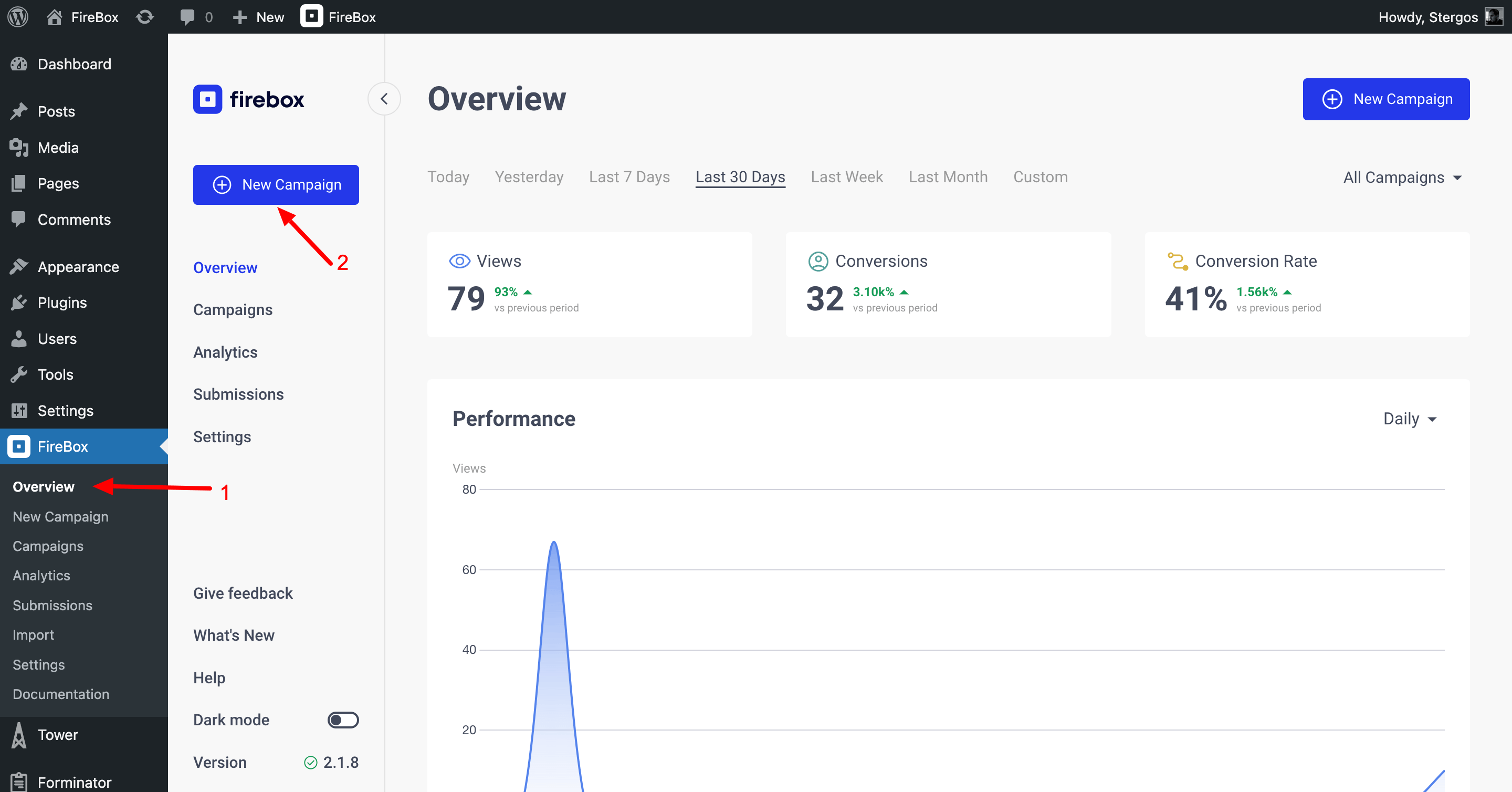
In the Popup Template Library that appears, search for "email." Select one of the available email opt-in templates and click Insert.
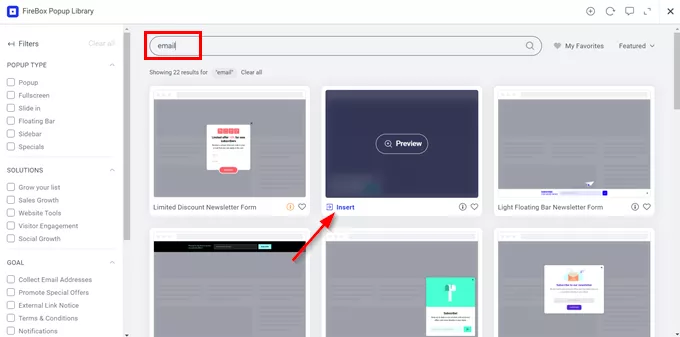
After selecting the form, proceed to customize the form in the next step.
Step 5: Customize Your Form
Let's get started by naming our campaign. Head over to the right-hand sidebar and at the top, set your campaign name under "Name", as seen below.
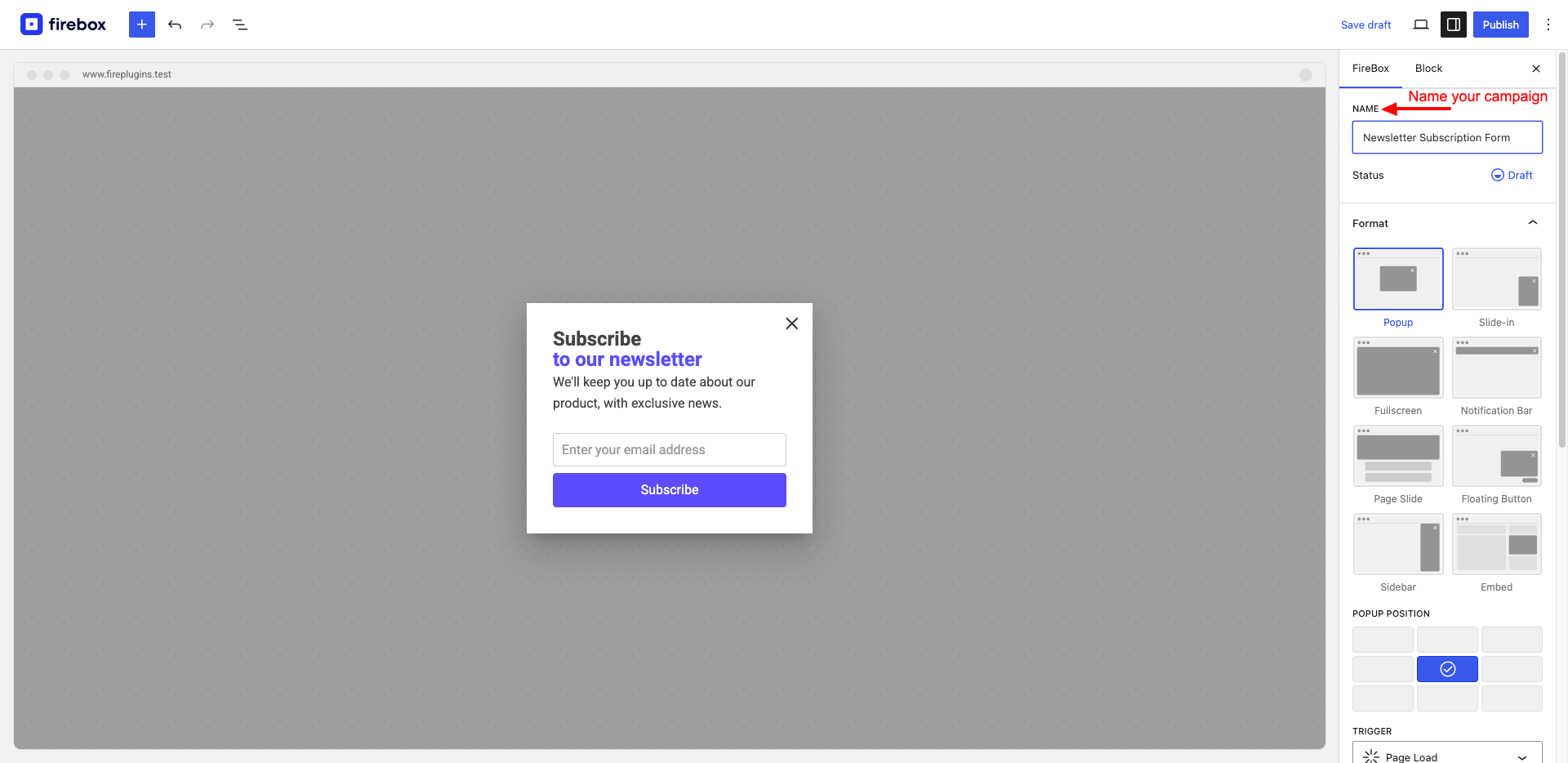
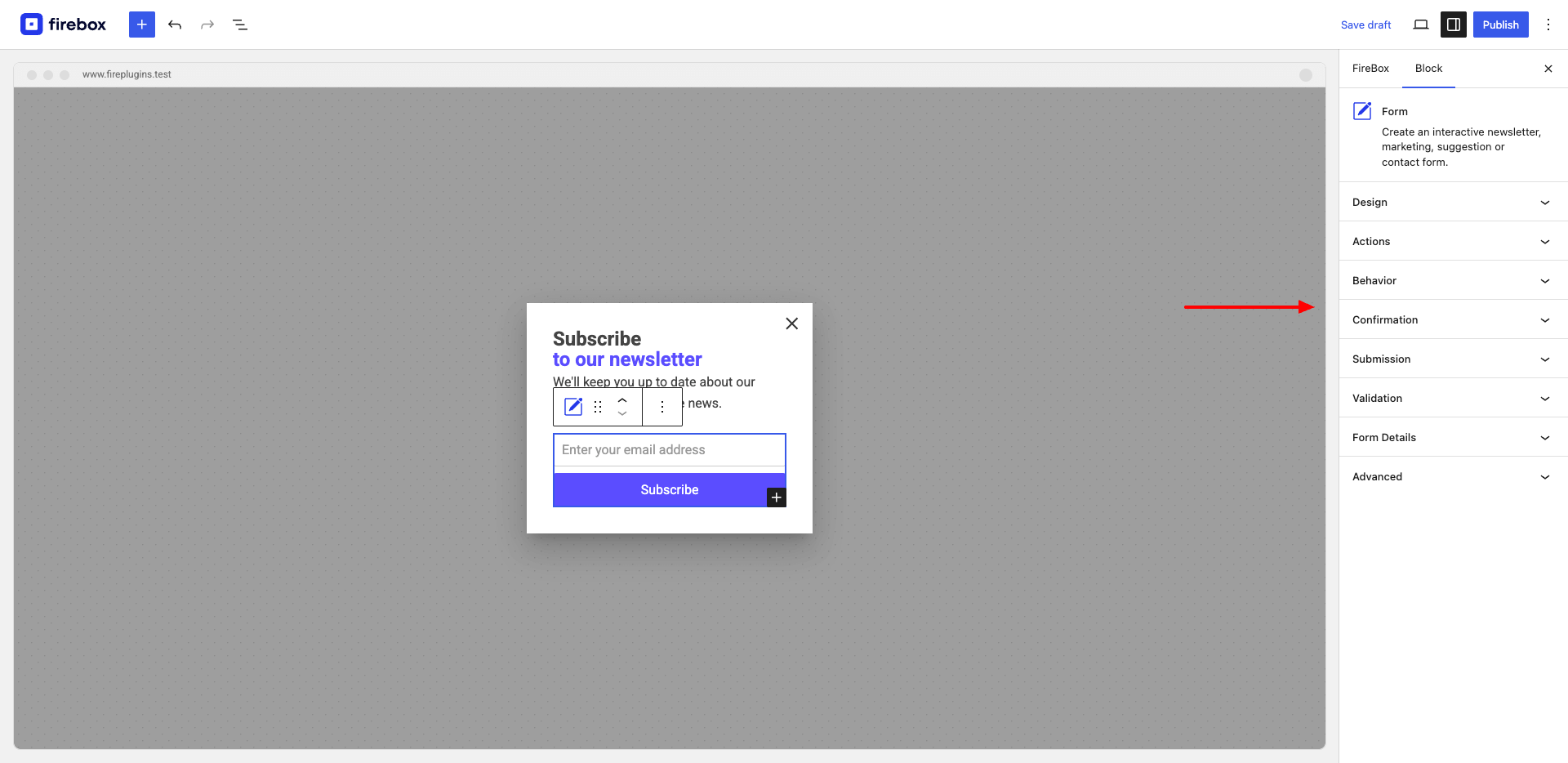
After you've imported your popup form campaign, you can customize your form by first selecting your Form block and the panels Design, Actions, Behavior, Confirmation, Submission, and Validation.
Step 6: Connect with MailerLite
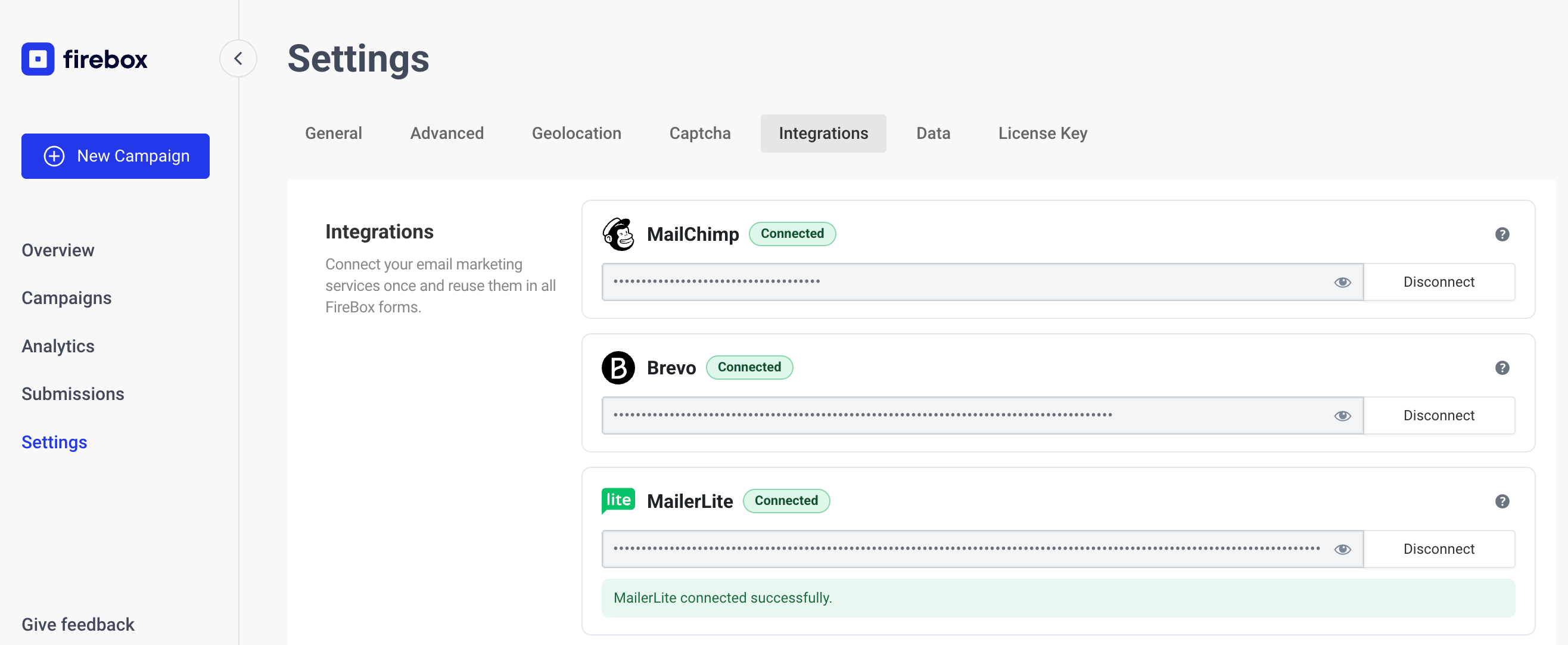
To start sending your conversions to MailerLite, you must first set up the connection between FireBox and MailerLite. To do this, go into FireBox > Settings > Integrations tab and enter your MailerLite API Key and click on the "Connect" button.
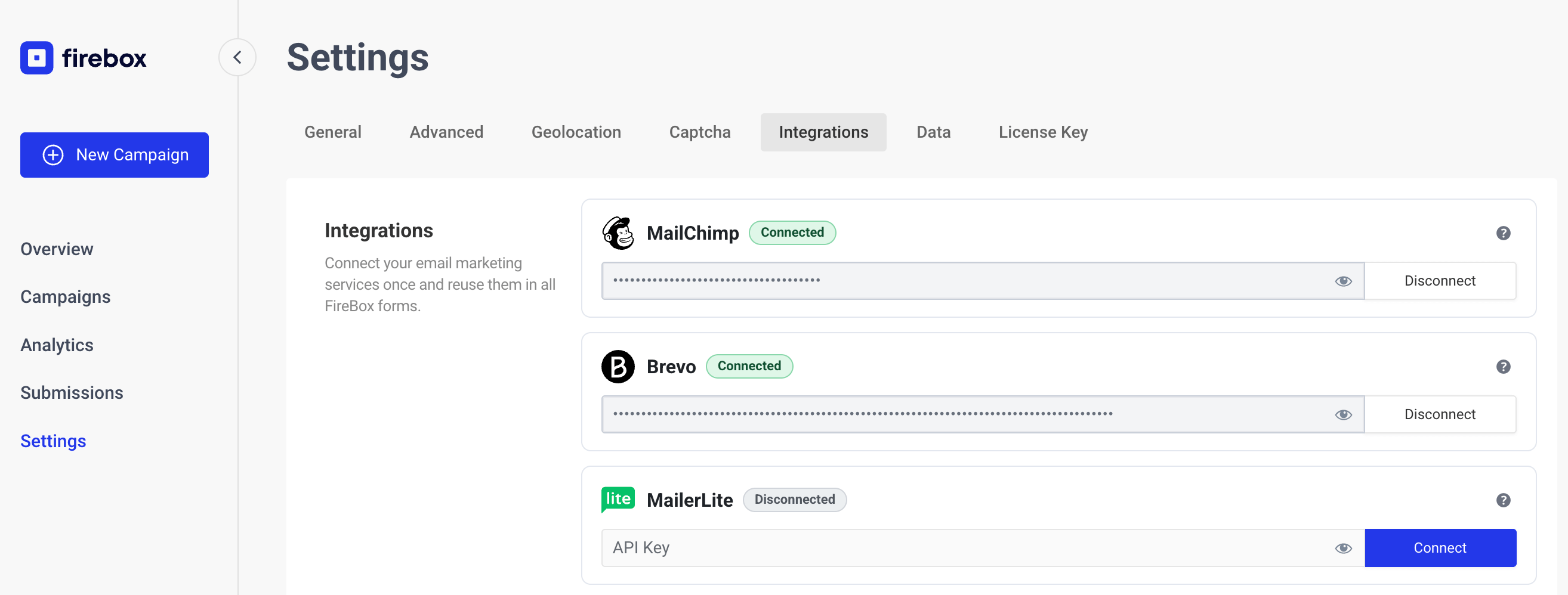
After clicking connect, you should see a green "Connected" badge and a green message confirming that you've successfully connected to MailerLite.
Step 7: Integrate FireBox With MailerLite
While in the Gutenberg editor, click your form’s block, head to actions, and select "MailerLite”.
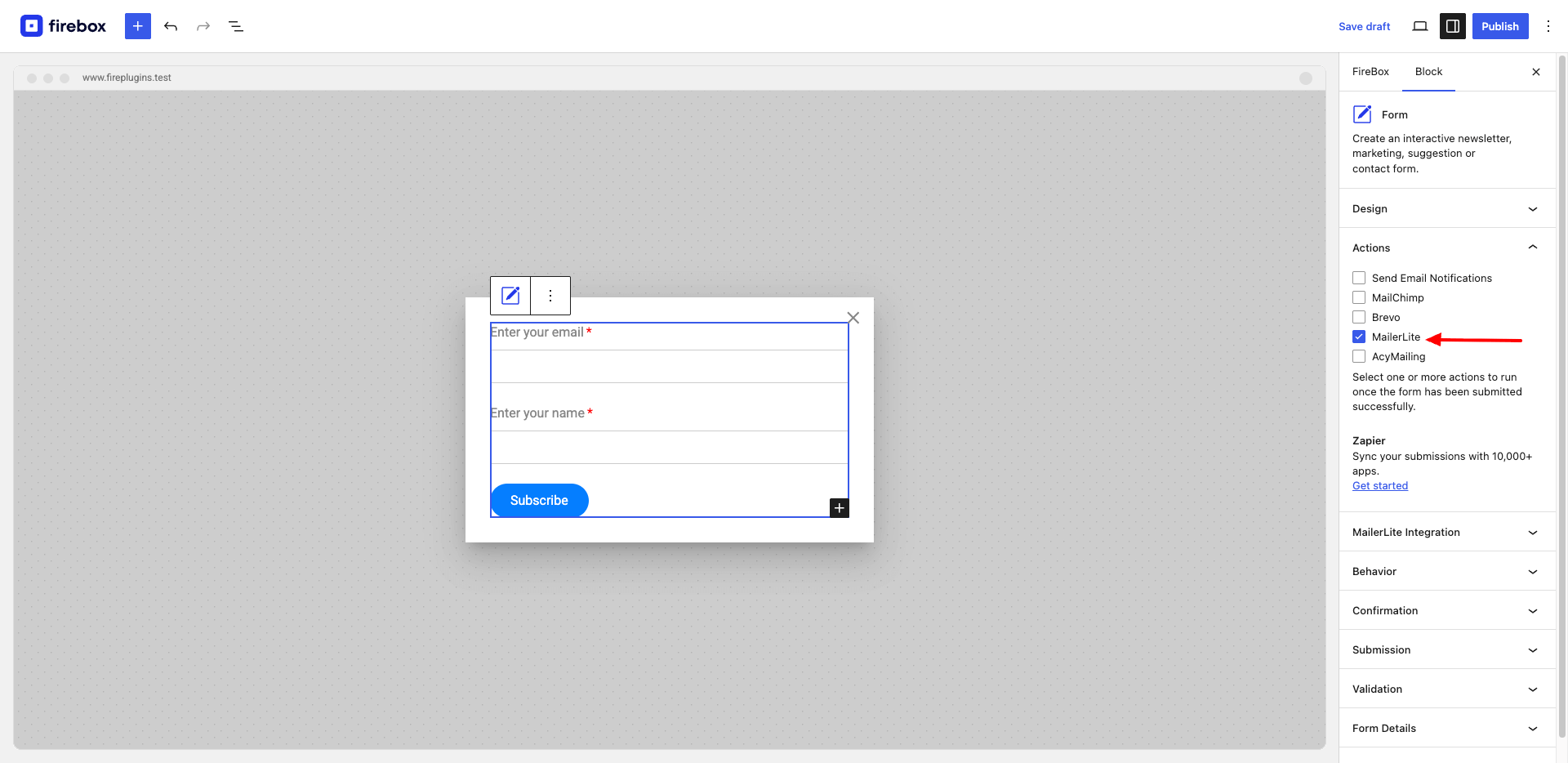
After enabling the MailerLite action, a new panel should appear named "MailerLite Integration" where you can configure your MailerLite settings.
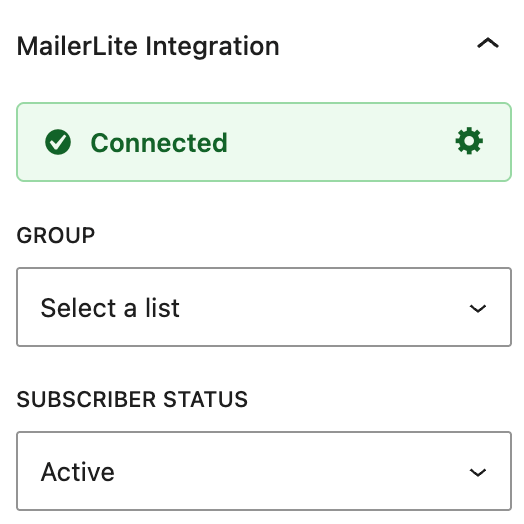
Select the group you'd like to send your submissions in MailerLite, as well as set the subscriber status.
Step 8: Set the (Success) Thank-You Message
Once the MailerLite integration is complete, set your Thank-You message. To do this, open up the block settings at the right by clicking the form. Go to Confirmation > Message After Success.
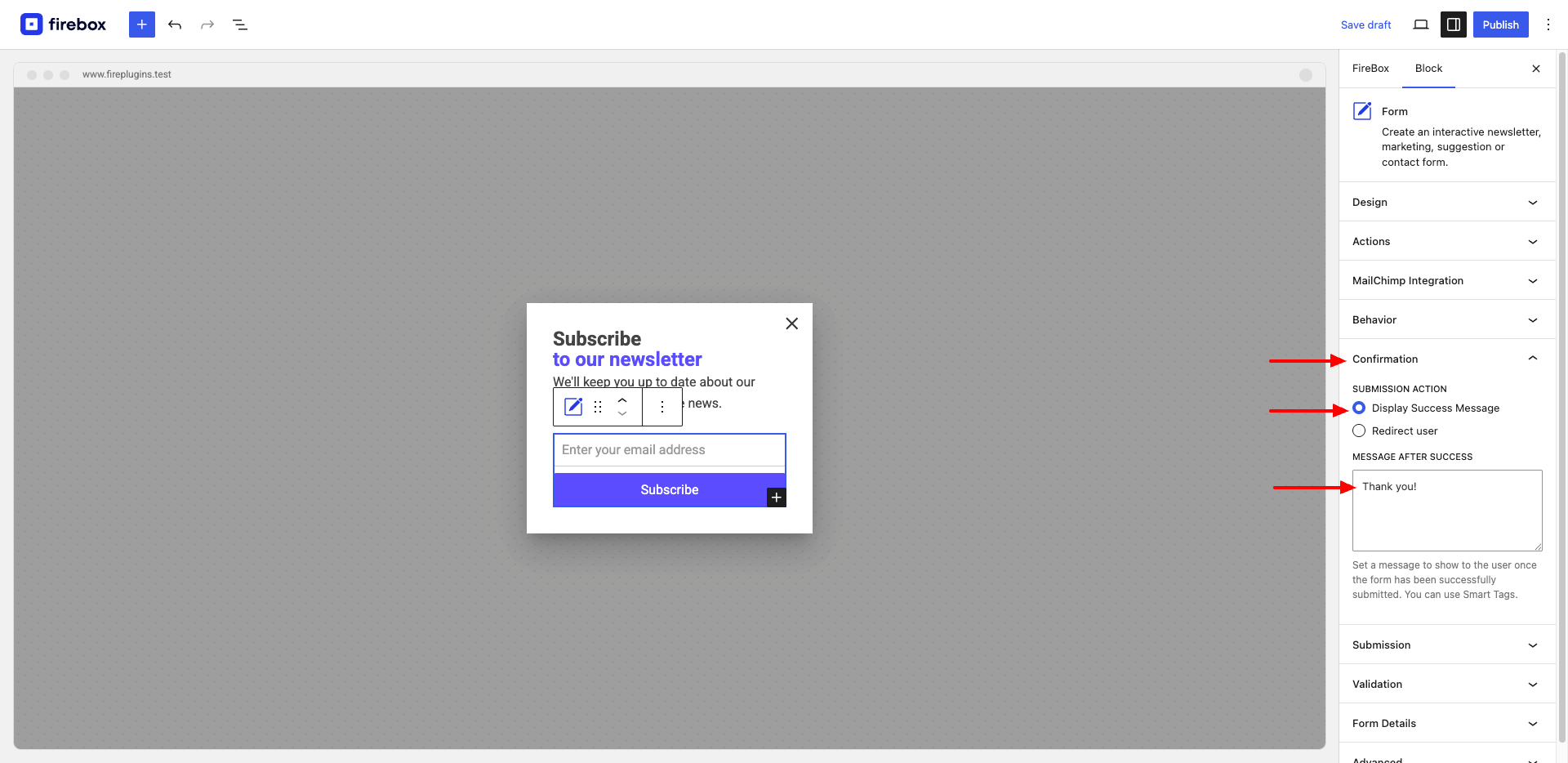
You can also redirect your site's visitors to another page instead of displaying a Thank-You message. All you need to do is insert the URL of the destination page in the field named "Redirect URL."
Advanced Optimization Tips
Once your popup form is live, improve it over time.
Offer a Lead Magnet
A newsletter is good, but a clear incentive performs better.
Examples:
- Free PDF
- Checklist
- Discount code
- Template
- Webinar access
Incentive-driven popups often convert significantly higher.
Use Content-Specific Popups
If someone is reading an SEO guide, show an SEO checklist.
If they’re browsing WooCommerce content, offer ecommerce tips.
Relevance increases opt-ins.
Test Different Headlines
Even small headline changes can increase conversions.
Test variations like:
- “Join 5,000+ Subscribers”
- “Get Weekly Growth Tips”
- “Download the Free Guide”
Track performance and refine.
Add Revenue Tracking
If you’re running WooCommerce or Easy Digital Downloads, you can track how popup-generated subscribers later turn into customers.
Instead of guessing whether your popup works, you can measure revenue impact directly.
This changes popups from “email collection tools” into measurable growth drivers.
Common Mistakes to Avoid
- Showing the popup instantly
- Asking for too many fields
- Not segmenting subscribers
- Ignoring mobile optimization
- Not testing after setup
- Not limiting display frequency
A popup should feel helpful, not aggressive.
Frequently Asked Questions
How do I connect MailerLite to WordPress?
You can connect MailerLite to WordPress using a popup plugin like FireBox. Simply generate your MailerLite API key, paste it into the plugin’s Integrations section, and click Connect. Once connected, your WordPress popup forms can send subscribers directly into your MailerLite groups.
Can I add subscribers to a specific MailerLite group automatically?
Yes. When configuring your MailerLite popup form in WordPress, you can select the exact group where new subscribers should be added. This allows you to segment users based on page type, campaign, or lead magnet.
Does MailerLite support custom fields in popup forms?
Yes. MailerLite allows custom fields such as company, source, or interests. When integrating with WordPress popup forms, you can map these fields so the information is sent automatically upon submission.
Is a popup better than an embedded MailerLite form?
In most cases, yes. A popup can trigger based on behavior like scroll or exit intent, increasing visibility and conversion rates. Embedded forms are static and rely on user initiative.
Can I use MailerLite popups on WooCommerce websites?
Yes. You can show targeted popups on product pages, offer discount codes, and add subscribers into ecommerce-specific groups. This helps build segmented email lists for follow-up campaigns.
Conclusion
Adding a MailerLite popup to your WordPress site is one of the simplest ways to increase long-term traffic and sales.
You:
- Capture visitors before they leave
- Grow your subscriber base
- Segment properly using groups
- Automate follow-ups
- Measure performance
With the right targeting and timing, a popup becomes an asset, not an interruption.
Set it up once. Refine over time. Let your list grow consistently.
If you're using MailerLite and WordPress, a well-configured popup is one of the highest ROI improvements you can make.
Get FireBox for Free
Enter your WordPress website URL to install instantly.
Trusted by 9,000+ users

0 Comments