
Trigger a popup using Kadence
Kadence buttons can open a FireBox campaign with one CSS class and one trigger setting. Total setup is about two minutes.
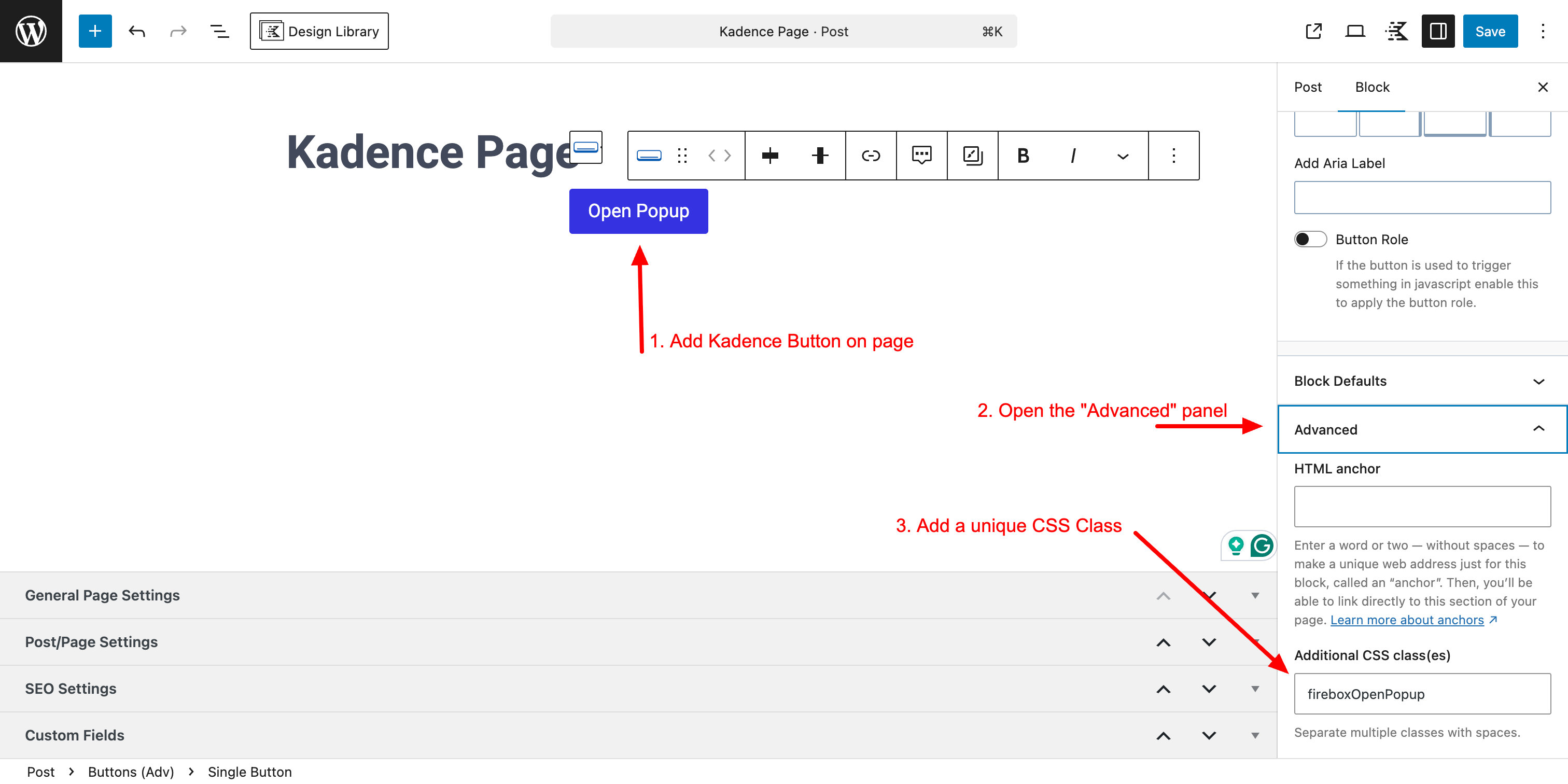
Step 1: Add a Kadence Button block on your page
Add the Kadence Button block on your page, open the Advanced Panel and add a unique CSS Class to it. For this example, we'll add the CSS Class "fireboxOpenPopup".
Step 2: Configure FireBox Campaign
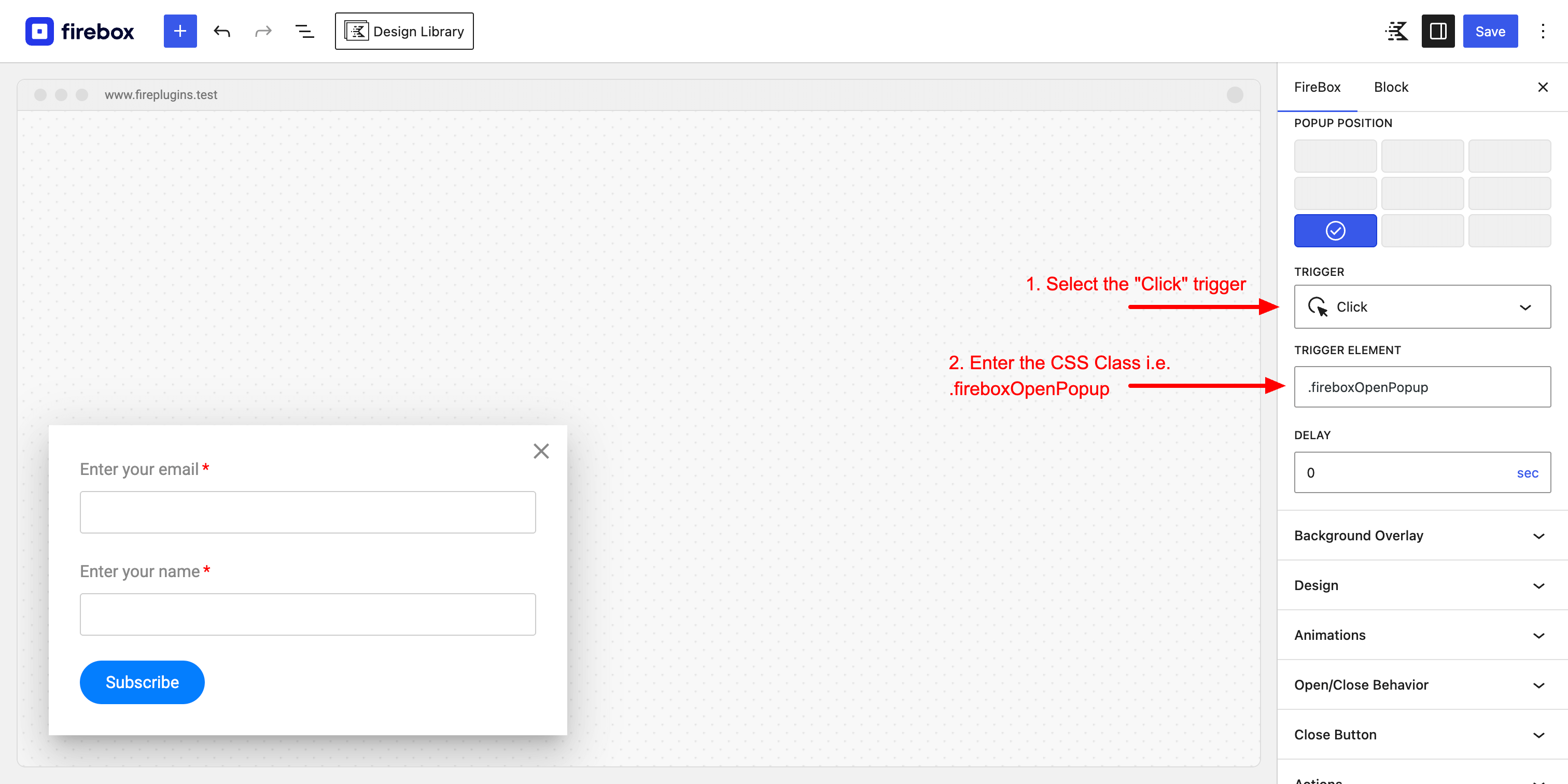
The next step is to configure your FireBox campaign to use the Click Trigger and specify the Trigger Element to match the CSS Class entered in the Kadence Button block > Advanced > Additional CSS Classes. This tells FireBox to trigger the popup only when we click this button.
Edit your FireBox Campaign > open the Format panel > select "Click" under Trigger and type ".fireboxOpenPopup" under Trigger Element.
Step 3: Ready!
Your Kadence Button should now trigger the popup on click.
Frequently Asked Questions
Why does my popup still not trigger after publishing it?
The most common ways your popup may not be triggering could be any of the following:
- Clear your WordPress Cache + Server Cache (OPCache)
- Review your Open/Close Behavior settings
- Review your Display Conditions
Read more here: Why does my campaign not appear after publishing it?