



How to exclude all FireBox CSS and Javascript files from WP Rocket?
WP Rocket minification and combination of CSS and Javascript files may break things (as WP Rocket mentions) due to the fact that the way the files are bundled up to a single file and minified is performed in an automatic way, and there is no real guarantee that this won't produce issues.
If such issues arise when using FireBox and your popups do not work as expected, you can exclude all FireBox media files (CSS and Javascript) by following the steps listed below.
Exclude CSS files
The correct field depends on which CSS optimization you have active.
If "Minify CSS files" is ON: Go to WP Rocket > "File Optimization" > "CSS Files" > "Excluded CSS Files" and add the following:
/wp-content/plugins/firebox/media/public/css/(.*)
/wp-content/plugins/firebox/media/public/css/vendor/(.*)
/wp-content/plugins/firebox/media/public/css/shortcodes/(.*)
/wp-content/plugins/firebox/media/public/css/blocks/(.*)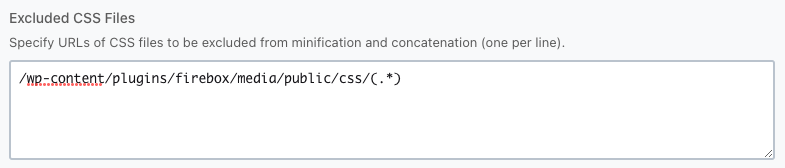
If "Minify CSS files" is OFF and "Optimize CSS Delivery" (Remove Unused CSS) is ON: The "Excluded CSS Files" field is not available. Instead, go to WP Rocket > "File Optimization" > "CSS Files" > "Remove Unused CSS" > "CSS Safelist" and add the same four paths above. This prevents Remove Unused CSS from stripping FireBox's popup styles.
Exclude Javascript files
WP Rocket has three separate exclusion fields for Javascript. FireBox files must be added to all three that you have enabled.
Excluded Javascript Files (Minification)
Go to WP Rocket > "File Optimization" > "JavaScript Files" > "Excluded Javascript Files" (under Minify JavaScript files) and add the following:
/wp-content/plugins/firebox/media/public/js/(.*)
/wp-content/plugins/firebox/media/public/js/blocks/(.*)
/wp-content/plugins/firebox/media/public/js/vendor/(.*)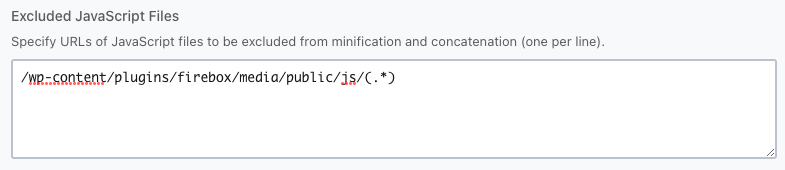
Excluded Javascript Files (Defer)
Go to WP Rocket > "File Optimization" > "JavaScript Files" > "Excluded Javascript Files" (under Load JavaScript deferred) and add the same three paths above.
Excluded Javascript Files (Delay JavaScript execution)
This is a separate field from the two above. If you have "Delay JavaScript execution" enabled, go to WP Rocket > "File Optimization" > "JavaScript Files" > "Excluded Javascript Files" (under Delay JavaScript execution) and add the following:
/wp-content/plugins/firebox/media/public/js/(.*)
/wp-content/plugins/firebox/media/public/js/blocks/(.*)
/wp-content/plugins/firebox/media/public/js/vendor/(.*)
firebox
Frequently Asked Questions
Why does my campaign not function properly after adding the excluded paths?
If the FireBox campaign appears properly but may not function properly, i.e. the animations may not appear or the close button not close the popup campaign, then the culprit is most likely the WP Rocket > File Optimization > CSS Files > Optimize CSS Delivery.
Disable it and try again.
My popup displays and Views are tracked, but Clicks and Conversions are not recorded. What's wrong?
This is caused by the "Delay JavaScript execution" feature in WP Rocket. FireBox's inline tracking scripts are being delayed and never execute at the right time.
Go to WP Rocket > "File Optimization" > "JavaScript Files" > "Excluded Javascript Files" (under Delay JavaScript execution) and make sure you have added all entries listed in the Delay JavaScript execution section above — in particular the firebox keyword, which is what catches the inline scripts responsible for tracking.